
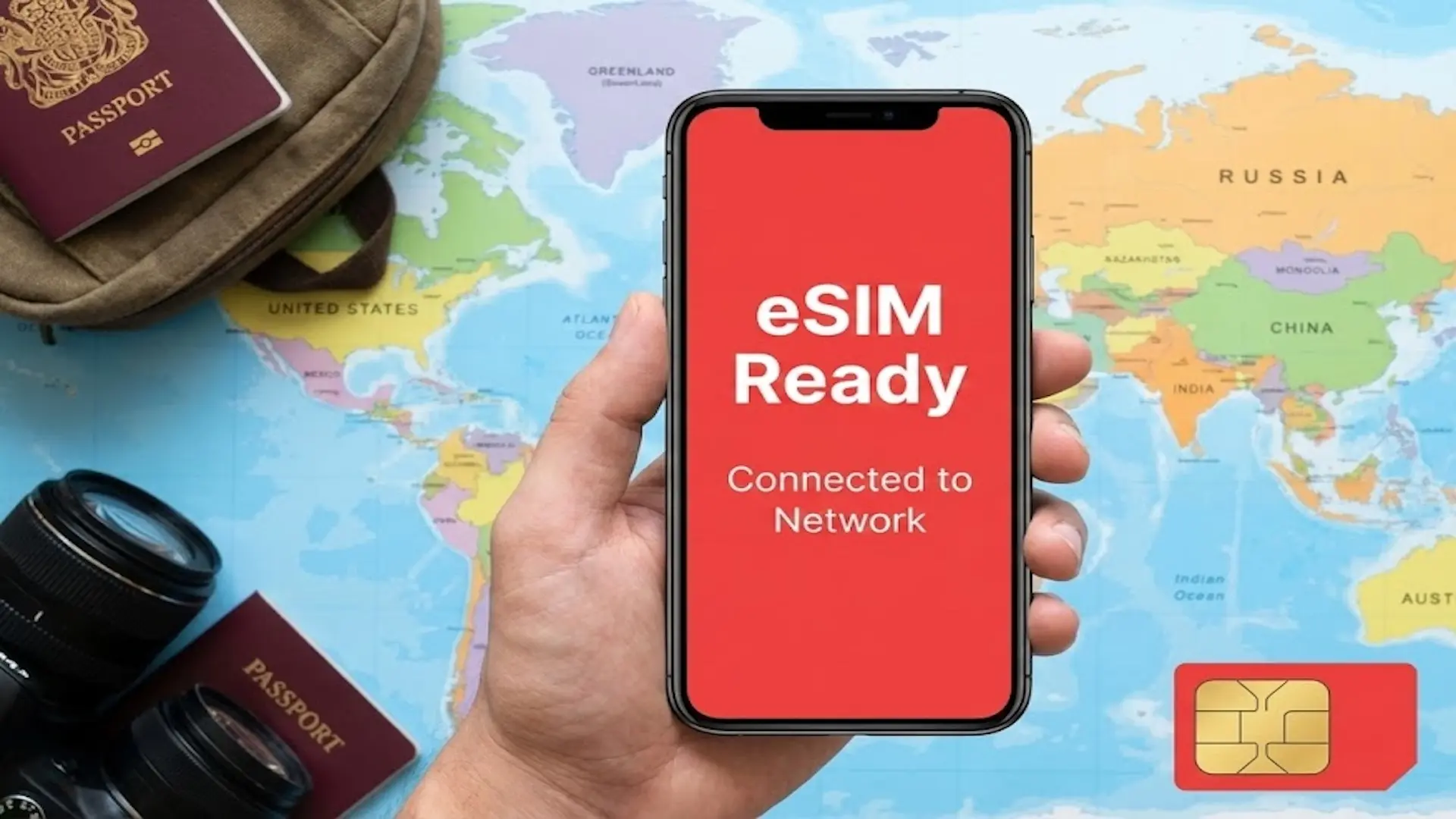
 eSIM Guides
February 15, 20264 min
Is My Phone eSIM Compatible? Check in 2 Seconds (2026 List)
Four reliable methods to quickly check if your smartphone supports eSIM (simulator, settings, #06# code, etc.)

Mobile data is your phone's internet connection when you're not on Wi-Fi: your smartphone goes through your carrier's 4G or 5G network, and every page, video or message uses up part of the GB included in your cell phone plan.
In this article, we look at what mobile data is (called cellular data on iPhone), how the connection works through cell towers, how it differs from Wi-Fi, how to turn mobile data on or off on iPhone and Android, how to track your data usage, what uses the most, how many GB you need per month, what it costs abroad with roaming, and how to manage your mobile data while traveling without overage charges.


SOUTH KOREA
active
20 Go
remaining
Operator
SKTelecom, LGU+
Expires
In 3d • Jun 12
Top up

THAILAND
active
20 Go
remaining
Operator
AIS
Expires
In 3d • Jun 12
Top up

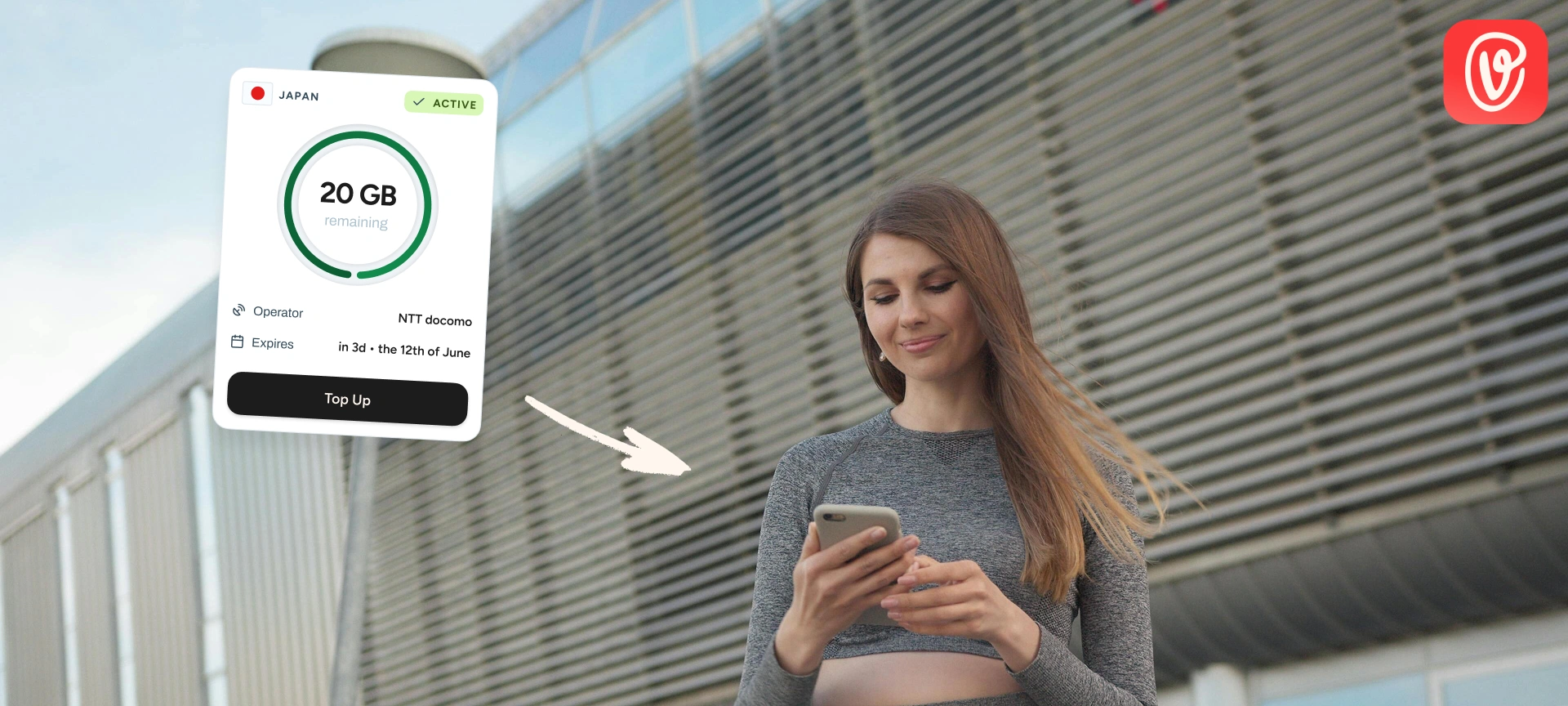
JAPAN
active
20 Go
remaining
Operator
NTT docomo
Expires
In 3d • Jun 12
Top up
No blocked apps
Tethering enabled
24/7 customer support
No blocked apps
Tethering enabled
24/7 customer support
Travel abroad with confidence: no more roaming fees, connection struggles, or unexpected top-ups. With a travel-friendly eSIM, stay connected everywhere, stress-free and surprise-free.
Definition: mobile data is internet access provided by your mobile carrier through its network, with no modem or Wi-Fi router, unlike your home internet connection.
The terms “mobile data” and “cellular data” mean exactly the same thing. Apple uses “Cellular Data” in iPhone Settings, a reference to the network's “cells”, meaning the areas covered by each cell tower. On Android, Samsung included, it's usually called “Mobile data”. You'll also come across “mobile internet” or “cellular internet”: same idea.
Mobile data isn't just for smartphones: a tablet, a smartwatch or a laptop with a SIM card or an eSIM can use it too.
Mobile data is measured by the amount of data exchanged:
Is 1 GB 1,000 or 1,024 MB? Strictly speaking, under the International System of Units, 1 GB = 1,000 MB. But many devices and carriers count in base 2, with 1 GB = 1,024 MB (which is actually a gibibyte). The gap is about 2%: it changes nothing in how you use your phone, but it explains why two counters don't always show the same number.
Mobile data works as a round trip. When you open a page or an app, your phone splits your request into small data packets and sends them by radio waves to the nearest cell tower. The tower passes them on to your carrier's network, which routes them over the internet to the service you asked for. The response travels back the same way, in a fraction of a second.

To use mobile data, you need three things:
Volume (in GB) is the amount of data you use. Speed (in Mbps) is how fast it travels. 3G, 4G and 5G refer to the network generation, and therefore to the speed and responsiveness of the connection, not the amount of data on your plan. With 5G, you download faster and latency (the response delay) drops, but 1 GB is still 1 GB.
The real speed of your mobile data depends on several factors: the coverage area you're in, the number of people connected to the same cell tower, your device and the technology available locally. When speeds plummet downtown on a concert night, it's often a sign of an overloaded tower.
Mobile data is used for anything that needs the internet when you don't have Wi-Fi. In practice, it lets you:
On the other hand, regular calls and texts go through your carrier's phone network and don't use mobile data.
When mobile data is on, an icon appears at the top of your screen, next to the signal bars. It shows the type of network your phone is connected to. If you only see Wi-Fi, or nothing at all, you're not using the mobile network.
| Icon shown | Network | What it means |
|---|---|---|
| 5G, 5G+, 5G UW | 5G | Fastest network, available depending on your device, your carrier and your area |
| 4G, 4G+, LTE | 4G | Most widespread network, good enough for video and video calls |
| H+, H, 3G | 3G | Older network, fine for messaging and light browsing |
| E (EDGE) | 2G | Very slow connection, just enough for a few messages |
| G (GPRS) | 2G | Bare-minimum connection, often unusable for the web |
The exact labels vary by brand, model and country. If you see a small airplane icon, that's Airplane Mode: all radio connections are off.
The difference between Wi-Fi and mobile data comes down to where the connection comes from: a router plugged into a fixed line (fiber, DSL) on one side, your carrier's cellular network on the other, which follows you everywhere but draws on your data allowance.
| Feature | Wi-Fi | Mobile data |
|---|---|---|
| Source | Home router or Wi-Fi hotspot | Carrier's mobile network (cell towers) |
| Range | Home, hotel, café: a few dozen yards | Anywhere the network has coverage |
| Impact on your plan | None | Deducted from your data allowance |
| Security | Varies: be careful on public Wi-Fi | Connection encrypted by the carrier's network |
| Best for | Large downloads, updates, long streaming sessions | Getting around, GPS, messaging, on-the-go use |
Your phone decides on its own: as soon as a known Wi-Fi network is in range (your home Wi-Fi, for example), it uses it; otherwise it switches to mobile data. It can also use data while you're connected to Wi-Fi. On iPhone, Wi-Fi Assist (in iOS 27, the option has been renamed and is now in “Settings” > “Wi-Fi”) switches to the cellular network when Wi-Fi is too weak; on Android, an automatic switching option does the same thing.
Leaving mobile data on all the time is convenient, but not always smart.
Turn mobile data on whenever you need the internet without reliable Wi-Fi:
There are four good reasons to turn off mobile data:
To turn on mobile data, all it takes is a switch in Settings. The path depends on your operating system (iOS or Android) and, on Android, on the brand: follow the steps for your device.
On a dual SIM iPhone, first select the line that uses data under “Cellular Data”, then turn the option on. Only one number can use mobile data at a time.
On a Samsung Galaxy:
On a Google Pixel and most recent Android phones:
Menu names vary by brand (Samsung, Xiaomi, Google Pixel, Oppo) and Android version. If you can't find it, use the search bar in Settings to look up “mobile data” and go straight to the right menu.
Even faster, from the Home Screen: on iPhone, swipe down from the top-right corner of the screen (or up from the bottom edge on an iPhone with a Home button) to open Control Center, then tap the cellular data icon (the antenna). On Android, swipe down from the top of the screen and tap the “Mobile data” icon in Quick Settings. A colored icon means data is on.
To turn off mobile data, follow the same path you used to turn it on and flip the switch off: “Cellular” on iPhone, “Data usage” on Samsung Galaxy, “Network & internet”, then “Internet” on Pixel. The Control Center or Quick Settings shortcut works too.
Once mobile data is off, you still have calls and texts. However, every app that needs the internet (messaging, GPS, social media) stops working away from Wi-Fi.
You don't have to turn everything off. You can stop a data-hungry app from using your mobile data and leave the others alone.
Tracking your mobile data usage helps you avoid surprises at the end of the month. Your phone and your carrier both show a counter: the first tells you what you've used, the second what you have left.
In “Settings”, then “Cellular”, your iPhone shows usage for the current period and a breakdown app by app. System services (updates, iCloud) have their own line. To start from zero at the beginning of your billing cycle, tap “Reset Statistics” at the very bottom: your iPhone doesn't do it on its own.
On a Pixel, go to “Settings”, then “Network & internet”, “Internet”, and tap the settings icon next to your carrier. Total usage shows at the top, and “App data usage” breaks it down app by app. In “Data warning & limit”, you can also:
On a Samsung Galaxy, the same options are under “Connections”, then “Data usage”.
Data usage apps, free or paid on the App Store and the Google Play Store, bring your mobile data and Wi-Fi management together in one dashboard, with custom alerts. They're handy if you manage several lines, but the tools built into your phone are enough in most cases.
The most reliable counter is still your carrier's, since they're the ones billing you. Most carriers show this information (data used and remaining) in their app and in your online account, and send a notification when you're getting close to your plan's limit.
When you travel with a voilà eSIM, you track your usage in real time in the voilà eSIM app: remaining data and how long your plan is valid.
What uses the most mobile data is video. An hour of a show in HD uses dozens of times more data than an hour of music. The most data-hungry uses are:
Text messaging, emails without attachments and GPS use very little in comparison.
Here are ballpark figures per hour of use, based on official numbers from the services themselves and from Orange:
| Use (1 hour) | Mobile data usage | Source |
|---|---|---|
| Netflix, Basic quality | up to 0.3 GB | Netflix Help Center |
| Netflix, Standard quality | up to 0.7 GB | Netflix Help Center |
| Netflix, HD | up to 3 GB | Netflix Help Center |
| Netflix, Ultra HD 4K | up to 7 GB | Netflix Help Center |
| Video call | about 600 MB | Orange |
| Spotify, Normal quality (96 kbps) | about 43 MB | Spotify Support |
| Spotify, High quality (160 kbps) | about 72 MB | Spotify Support |
| Spotify, Very high quality (320 kbps) | about 144 MB | Spotify Support |

Lowering video quality is the single move that saves the most data: going from HD to standard quality cuts usage roughly fourfold.
Yes. When you share your connection with a laptop or a tablet, every data transfer from the other device goes through your mobile data. And a computer often uses more than a phone: system updates, cloud syncing, full desktop versions of web pages. Remember to turn off your computer's automatic updates before connecting it to your phone. Good news when you travel: using your phone as a hotspot is included in every voilà eSIM plan.
How many GB of mobile data you need per month mostly depends on how much video you watch. To see where you stand:
| Profile | Typical use | Recommended monthly data |
|---|---|---|
| Light | Messaging, email, GPS, a little browsing | 1 to 10 GB |
| Moderate | Social media every day, music, short videos | 20 to 50 GB |
| Heavy | Video streaming, video calls, hotspot | 100 GB or more |
To give you a concrete idea, Orange says 5 GB covers about 8 hours of video calls per month, and 30 GB about 42 hours of standard-quality video. With only 100 MB, you're limited to messaging and a few lightweight web pages.
Average usage goes up every year with video and 5G: active 5G users consume noticeably more data than 4G users. Before switching plans, check your actual usage over the last three months in your phone's settings.
These benchmarks apply to your usual plan. For a trip abroad, you work out what you need differently, based on the number of days and what you'll do there: our page on how many GB for your trip gives you a quick estimate.
Day to day, a few settings are all it takes to manage your mobile data usage:
Yes, you pay for mobile data, but you've already paid for it: it's included in your cell phone plan, as a GB allowance that renews every month. As long as you stay within that allowance, you don't pay anything extra.
What happens when you go over depends on your plan:
Either way, calls and texts keep working. The smart move: set an alert at around 80% of your allowance and check your carrier's app to see how it handles overages.
When your mobile data isn't working, the cause is often simple. Check in this order:
Point 7 is the most common issue with a travel eSIM: the eSIM runs on the network of a local partner carrier, so your phone treats it as roaming. You need to turn on data roaming for the eSIM line (see below), or nothing gets through. Our article on how to install an eSIM walks through the settings.
If nothing works, restart your phone, then reset your network settings as a last resort (you'll have to re-enter your Wi-Fi passwords). If the problem persists, or if an error message appears, contact your carrier's customer service: an agent can check your line.
The charges for mobile data abroad depend on where you travel. Using your plan outside your home country is called roaming: your phone connects to a local carrier's network, which bills your carrier, which then bills you.
In the European Union, the “Roam like at home” rule has applied since June 15, 2017: you use your plan at your home country's rates, with no extra charges. It also covers Iceland, Liechtenstein and Norway and, according to the European Union, Moldova and Ukraine. A fair use limit exists to prevent permanent roaming.
Outside that zone, it's a different story: roaming charges apply, data is billed per MB or through travel passes on the foreign network, and the bill climbs very quickly. Even in Europe, watch out on a ship or a plane: if your phone connects to a satellite network, EU rules no longer apply and rates aren't capped. For country-by-country details, check out our article on roaming in Japan, for example.
Heading to North Africa instead? Carrier offers and their rates are compared in our article on roaming in Morocco.
To use your mobile data abroad, your phone has to allow roaming:
Only turn it on for the line that should use data abroad: your travel eSIM, or your usual line if your plan covers the destination.
Yes, mobile data works without a physical SIM card, thanks to eSIM. An eSIM is a chip built into your phone: instead of inserting a plastic card, you download an eSIM profile that holds your plan. You can even keep your usual SIM card and add a data eSIM alongside it.
Each eSIM chip has its own identifier, the EID number, but you'll almost never need to know it.
To understand the technology inside out, see what is an eSIM, where we cover it in detail.
Before you buy, make sure your phone is compatible: most recent smartphones are, and the full list is on our eSIM compatible devices page.
Check in a few seconds whether your smartphone supports eSIM, before you buy your data plan.
When you travel, managing your mobile data is mostly about keeping your usual plan from racking up sky-high roaming charges.
Before you leave for a destination outside the area your plan covers, turn off data roaming on your usual line. You still get calls and texts, but your plan stops using data abroad. Some apps exchange data as soon as a connection exists, even if you don't open them: turning off roaming is the only real guarantee.
With a dual SIM phone, you can keep your usual line for calls and texts, and run all your data through a travel eSIM. On iPhone, go to “Settings”, then “Cellular”, tap “Cellular Data” and choose the eSIM line. Leave “Allow Cellular Data Switching” turned off: otherwise, your usual line can use data during a call and end up roaming.
Free Wi-Fi at your hotel or a café is a good complement to the mobile network, but it's often slow, and an unsecured public network offers no privacy or protection for your data: no checking your bank account on it. Also think about offline maps. And if you want zero risk, combine Airplane Mode and Wi-Fi: you turn only Wi-Fi back on, and your usual line stays silent. For a group or a long stay, pocket Wi-Fi is another option: we compare it to eSIM in our article on pocket Wi-Fi in Japan.
You have four options for getting mobile data abroad. For a concrete example in one destination, our article on internet in Japan compares them on the ground.
| Option | Cost | What it takes | Best for |
|---|---|---|---|
| Public Wi-Fi | Free | Nothing, just connect to the network | As a backup, not for the whole trip |
| Your carrier's international add-on or pass | Often high outside your plan's coverage area | Activation from your online account | Very short trip, light use |
| Local SIM card | Cheap locally | Store visit on arrival, ID sometimes required, card to insert | Long stay in a single country |
| Travel eSIM | Price known in advance | Buy and install online before you leave | The best option for most travelers |
With voilà eSIM, the problem is solved before you even leave. You pick your destination in the app, buy a data plan from 1 to 50 GB, from $0.90 depending on the destination, and the price shown is the final price: no subscription, no roaming charges. voilà eSIM covers more than 200 destinations, with 5G where it's available locally.
The three reasons travelers choose it:
You keep your usual line for calls and texts. For a trip around the world, the Global eSIM covers you in several countries with a single plan.
SOUTH KOREA
active
20 Go
remaining
Operator
SKTelecom, LGU+
Expires
In 3d • Jun 12
Top up
THAILAND
active
20 Go
remaining
Operator
AIS
Expires
In 3d • Jun 12
Top up
JAPAN
active
20 Go
remaining
Operator
NTT docomo
Expires
In 3d • Jun 12
Top up
No blocked apps
Tethering enabled
24/7 customer support
No blocked apps
Tethering enabled
24/7 customer support
Travel abroad with confidence: no more roaming fees, connection struggles, or unexpected top-ups. With a travel-friendly eSIM, stay connected everywhere, stress-free and surprise-free.
Rony is our in-house travel-connected expert. Always curious and never too far from an airport, he explores the latest destinations while testing the newest eSIM solutions. He signs our articles on travel and mobile technology, with a single mission: to turn his discoveries into clear, reliable, and smart advice to accompany you anywhere in the world.
See all articleseSIM GuidesFour reliable methods to quickly check if your smartphone supports eSIM (simulator, settings, #06# code, etc.)
 eSIM Guides
To set up an eSIM on your phone: Settings > Cellular Data > Add an eSIM Card. Installation takes just a few clicks.
 eSIM Guides
The EID number is the 32-digit code of your eSIM chip: what it's for and how to find it on iPhone, Samsung, Pixel, OnePlus, Motorola and smartwatches.